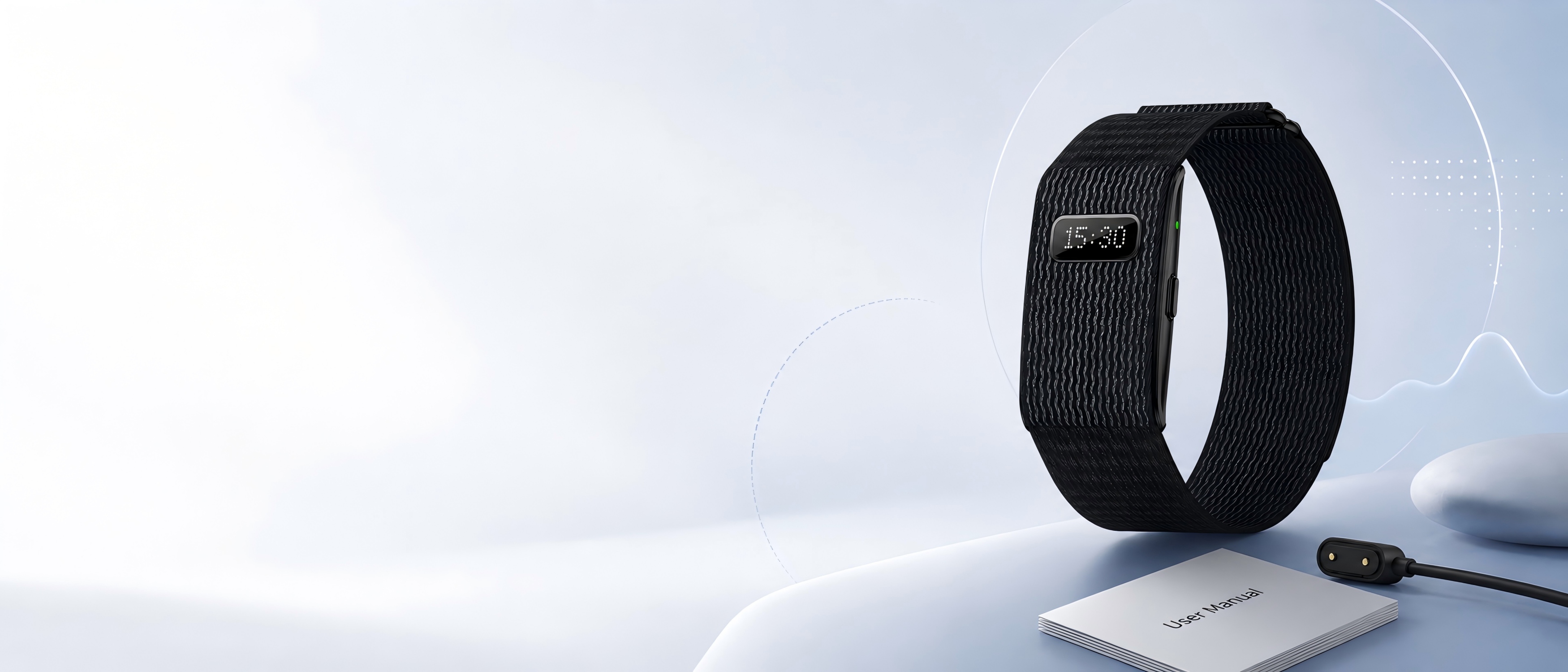
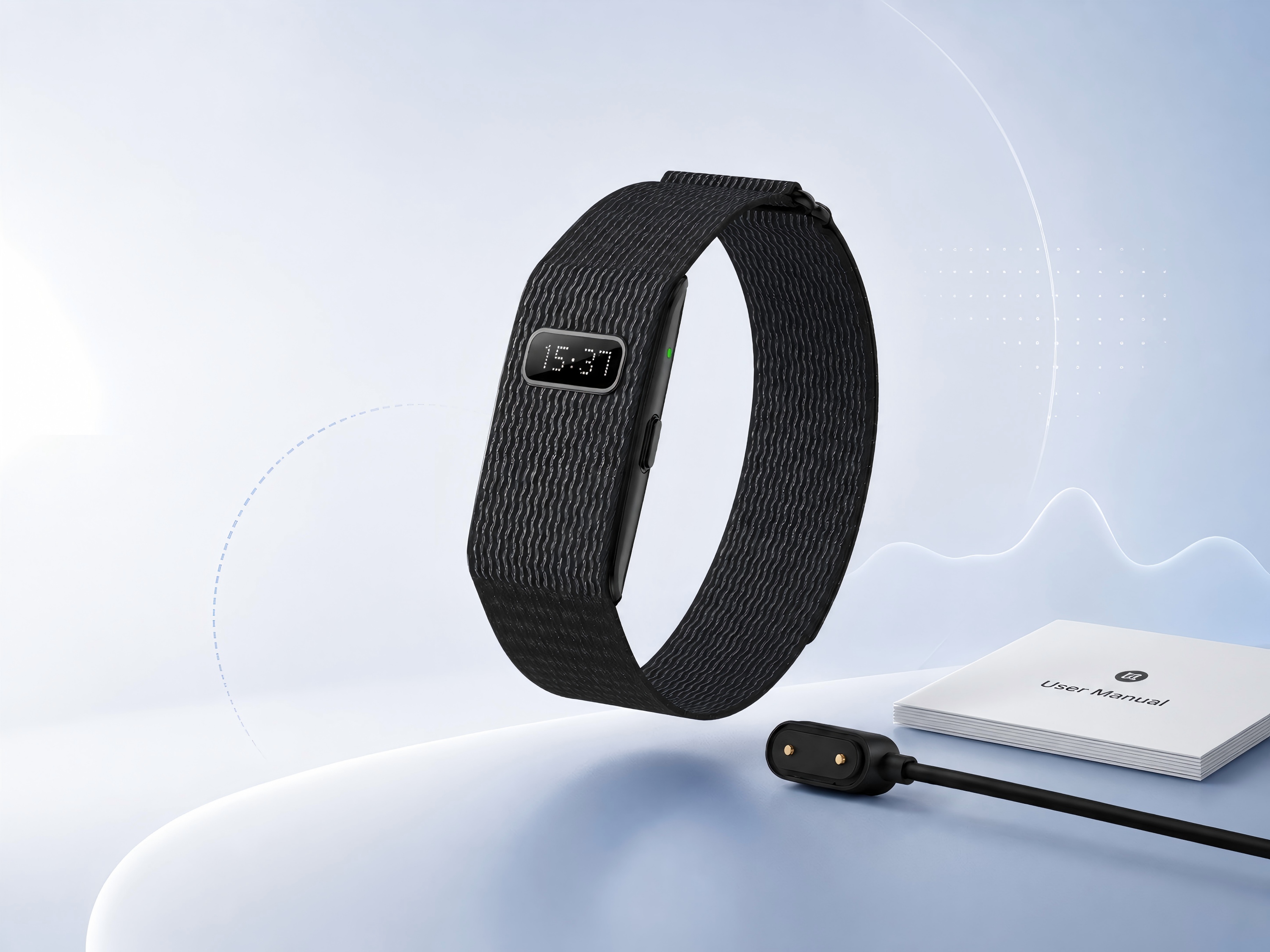
Follow these essential steps before using your smart band for daily wellness tracking.
System Requirements: Android 5.0+ / iOS 10.0+ / Bluetooth 5.0
Inside the box, you will find the AutrefoisElf Smart Band, a magnetic USB charger, and a user manual.
The smart band includes a home key, LED indicators, heart rate sensor, and blood oxygen sensor for daily wellness tracking.
Scan the QR code or search for QWatch Pro in your app store. View steps, distance, calories, heart rate, blood oxygen, sleep, and stress trends in the app.
Keep the magnetic charging contacts clean, dry, and properly aligned for reliable charging performance.
Track daily wellness trends and activity data through the QWatch Pro app.
The smart band is designed for everyday water exposure, such as handwashing, rain, and light daily moisture.
To help protect the device, avoid hot water, saunas, steam rooms, and high-pressure water flow. Dry the band before charging.
Wear the band comfortably around your wrist with the sensor area touching your skin. The band should feel secure without being too tight.
For more stable heart rate and sleep data, keep the band slightly above your wrist bone and avoid wearing it too loosely during movement or sleep.
Receive light and vibration alerts for calls, messages, alarms, and sedentary reminders when Bluetooth is connected.
| Alert Pattern | Notification Type | Bluetooth Required |
|---|---|---|
| Continuous flash & vibration | Incoming calls | Yes |
| Single flash & vibration | SMS and app notifications | Yes |
| 3 flashes & vibrations | Sedentary reminder | Yes |
| Rapid flash & vibration | Alarm clock | Yes |
Open Workout mode in the QWatch Pro app and choose from 100+ workout types.
For outdoor running, enable GPS on your phone to help track your route and running stats.
Use the app to manage health monitoring intervals, daily goals, alarms, smart notifications, firmware updates, and factory reset options.
Firmware updates may appear in the app when available. Follow the on-screen instructions and keep the device close to your phone during updates.
Make sure the device is charged, Bluetooth is enabled, and the QWatch Pro app has the required Bluetooth and Location permissions. Restart the app and try pairing again.
Wear the band snugly with the sensor area touching your skin. Avoid wearing it too loosely, especially during workouts or sleep tracking.
Charge the device for at least 3 hours to recalibrate the battery, then resume normal use. Frequent notifications and continuous tracking may affect battery life.
Press the home button once to dismiss an incoming alert. Press the home button twice to use the device as a remote camera shutter when supported in the app.
Yes. You can use the QWatch Pro app to view supported wellness and activity data without a monthly subscription fee.
No. This smart band is designed for general wellness and activity tracking only. It is not intended to diagnose, treat, cure, or prevent any disease.
If your issue is not solved after checking this guide, our support team is here to help. Contact us with your order information, device model, and a brief description of the issue.
For faster help, please include your order number and a clear photo or video if available.
Carregando